Table of contents: Audi MMI ↓ Disk drives ↓ Automatic disc changer ↓ MMI terminal ↓ MMI display ↓ Multifunctional steering wheel ↓ MMI display ↓ MMI menu overview ↓
Audi MMI
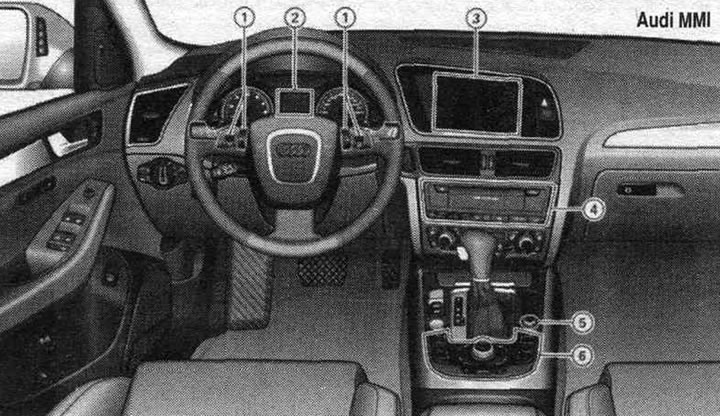
1. Multifunctional steering wheel. 2. Driver information system. 3. MMI display. 4. MMI drives. 5. On/off button. 6. MMI terminal (control panel).
Disk drives
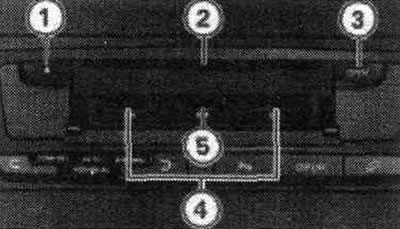
1. CD eject button. 2. CD/DVD slot. 3. OPEN key. 4. Memory card reader. 5. SIM card reader.
The MMI drives are located in the center console and are started and controlled via the MMI. Opening the SIM card reader cover by pressing the OPEN button "3" provides access to both memory card readers and the SIM card reader. The following audio file properties are supported by the CD/DVD drive, disc changer, memory card reader, and USB memory device.
| P.1 | MP3 files | WMA files | AAC files |
| Format | MPEG-1 Layer-3, MPEG-2 Layer-3 | Version 7, 8 and 9 | MPEG-4 |
| Profiles | LG - Low Complexity | ||
| File extension | .mp3 | .wma | .m4a |
| File system | Memory card and USB storage device: FAT or FAT32 system, only one partition CD/DVD drive: Joliet (CDs: "single session" and "multisession"; DVDs: only "single session") | ||
| Standard | ISO 9660-Level 1 and 2 | ||
| Digital speed | 32-320 kbps and variable bit rate at sampling frequencies of 8-48 kHz | ||
| Playlist format | M3U and PLS | ||
| Number of files | CD/DVD drive: Max. 1000 files per storage medium and directory; automatic disc changer: Max. 3000 files in total USB storage device and memory card reader: Max. 4000 files in total and max. 1000 files per directory | ||
| Supported storage media | Memory card reader: Supports memory cards with a capacity of up to 32 GB. CD/DVD drive: Audio CDs, MP3/WMA/AAC CDs up to 700 MB. MP3/WMA/AAC DVDs in DVD-5, -9, -10, -14 and -18 formats, standard DVD video and conformal DVD audio "Audi Music Interface": iPod, USB storage device | ||
| Metainformation | ID3 tag up to 50 characters | WMA tag up to 50 characters | Metainformation support |
Note: The disc changer does not support displaying playlists. The more files/folders/playlists there are on the storage device, the longer it will take to download audio files. Audi recommends using a data carrier that contains only audio files. To reduce loading time, it is advisable to create subsections (for example, by artist or album). For the highest possible audio file access speed, we recommend using SD cards of performance class 4 or higher. For MP3 file compression, we recommend a minimum bit rate of 160 kbps. For MP3 files with variable bit rate, the elapsed playback time displayed may differ from the actual time. MMI drives do not support DRM-protected files. Due to the variety of CD/DVD media formats and storage capacities, the functionality of some storage media may be limited. Under certain circumstances, playback of copy-protected audio CDs or video DVDs or CDs/DVDs that do not comply with the standard may not be possible or may only be partially possible. Compact discs that comply with the standard can be identified by the logo "Compact Disc Digital Audio", located on the disk. Under certain circumstances, compact discs "multisession" may not be playable or may be playable with limitations. When creating CDs "multisession" Audi recommends that you always complete the disc burning process. Displaying diacritic characters (for example, in the ID3 tag) depends on the MMI system language and may not always be provided. Never perform backups on memory card reader drives, disc changers, CDs/DVDs, or portable playback devices. Audi assumes no liability for damaged or lost files. Please note that audio files are protected by relevant copyright laws.
Automatic disc changer
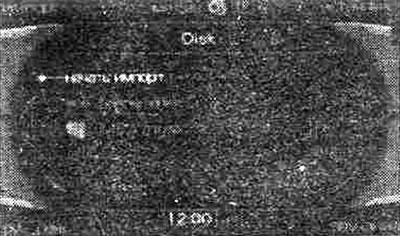
Importing files.
Audio files can be imported from a CD/DVD to a CD/DVD drive, USB storage device, or memory card. Press the MEDIA function key. Press the import control key. Turn the control button to set it to the appropriate source (e.g. SD/MMC, CD/DVD or USB) and press the control button. After checking the selected source, the folder structure appears on the MMI display. Rotate the control button to set it to all files/folders or select individual files to import, then press the control button. To start the import process by rotating the control button in the top level of the directory, start importing and click on the control button. The MMI display shows the progress of the import process. The user can select to import all files in a folder by rotating the control button to the folder, pressing the control button and holding it down for a long time. According to the stored metainformation (for example, in the ID3 tag) the disc changer automatically sorts music files into folders when importing them: artists, albums, tracks, and music genres. If the disc changer does not contain any files, a message appears on the MMI display with the option to import new files. road. Press the control button to go directly to the import menu. The import process can be interrupted at any time by turning the control button to interrupt and pressing it. Turning off MMI or deleting the source (e.g. SD/MMC, CD/DVD or USB), and starting the engine during import also results in the import process being interrupted. Already imported audio tracks are preserved.
Note: Import audio files only when the engine is running. The export function is not supported by the disc changer due to copyright issues. Playing and importing audio files into the CD/DVD drive at the same time may cause playback or importing limitations. Audi recommends that you start playing the audio files from the CD/DVD drive after importing is complete. Existing files are automatically overwritten during import. Files/audio tracks that do not have stored metainformation are listed as unknown. Audi recommends importing audio files with preserved meta information (for example. in ID3 tag).
MMI terminal
In the menu structure you can find options for individual main functions.
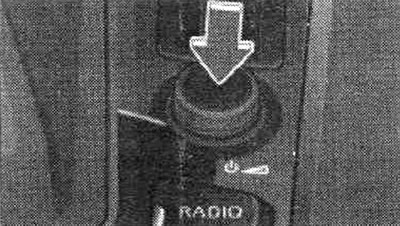
On/off button.
Keyless entry car with convenient maintenance
To turn on MMI, turn on the ignition. The menu for the main function selected at the time of the last shutdown appears. The audio/video source that was playing when it was last turned off is turned on. To turn off the MMI, remove the key from the ignition switch. The settings are saved in memory.
Car with a comfort service key
To turn on the MMI, press the START ENGINE STOP button. To turn off the MMI, press the START ENGINE STOP button twice. The settings are saved in memory.
Manual mode
To turn on the MMI, briefly press the on/off button. To turn off the MMI, press and hold the on/off button until the MMI turns off. If the MMI system is switched off manually, it will not switch on automatically the next time the ignition is switched on. When the ignition is off, the MMI remains operational for approximately 10 minutes. If no function key, control button, or control button on the MMI terminal is pressed during this time, the MMI switches off automatically. When the engine is off and the battery is weak, MMI switches off automatically. Briefly pressing the on/off button will mute the selected audio source (Mute function).
MMI functions are implemented by pressing and rotating keys on the MMI terminal.
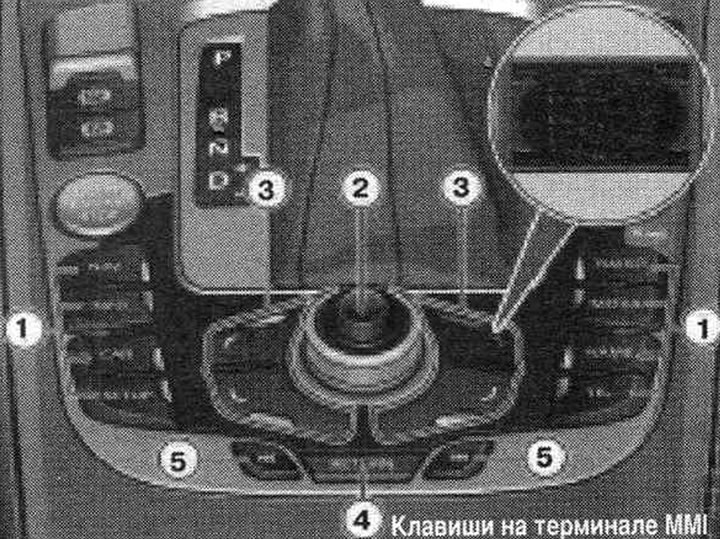
1. Function keys.
Pressing a function key switches on a specific mode. For example, radio mode is activated by pressing the RADIO function key. The SETUP function key selects other settings for the active mode.
2. Control button with joystick.
Rotating the control button left/right and pressing it selects a specific menu item on the MMI display. The joystick can be used to move the crosshairs on the map or to navigate the DVD menu.
3. Control keys.
To activate a function displayed in one of the 4 corners of the display, press the control key that corresponds to that corner of the display. For example, the upper right corner of the display corresponds to the upper right control key.
4. The "Return" key.
Pressing the Return key cancels a selection that has not yet been confirmed or returns to the next higher level.
5. Arrow keys.
Pressing the "<" or ">" keys selects the previous/next radio or TV station. Pressing the ">" key switches to the next track on a CD or connected iPod. Pressing the "<" key within the first ten seconds of a track's playback switches to the previous track. If more than ten seconds have passed, the beginning of the audio track is played. If you hold down the "<" or ">" key in CD mode, fast forward/rewind is activated.
MMI display
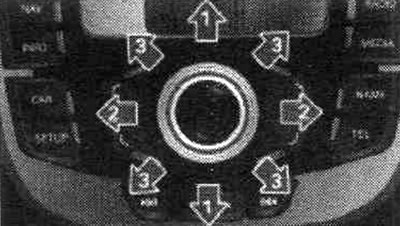
MMI terminal: joystick movement capabilities.
Using the joystick, you can move the crosshair on the map or navigate the main menu of a video DVD. The MMI display must show a map or play a video DVD.
Moving the crosshair around the map
To move the crosshair vertically on map "1," move the joystick up/down. To move the crosshair horizontally on map "2," move the joystick right/left. To move the crosshair diagonally on map "3," move the joystick right/left and up or right/left and down.
DVD Main Menu Controls
Press the manual mode control key. Turn the control button to select MENU (main menu indication) and press the control button. The MMI display shows the main DVD disc menu. To select a menu item, move the joystick up/down "1" or right/left "2". To confirm the selection, press the control button. Work continues in DVD mode.
Additional installations
Select: SETUP function key > menu language setup control key. You can change the display language on the MMI display and in the driver information system, as well as the language for the navigation system. and speech dialogue system. You can choose from the following languages: German, English, French, Italian, Spanish, Portuguese, Dutch and Russian. The speech dialogue system does not support speech addresses and commands in Russian.
Multifunctional steering wheel
The multifunction steering wheel can be used to call up and control MMI functions such as navigation, telephone, radio, TV, data media or the voice dialogue system.
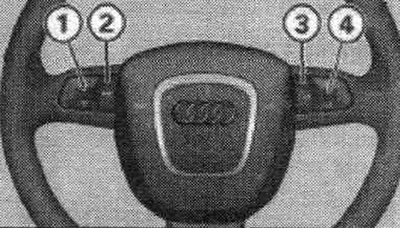
Controls on the multifunctional steering wheel.
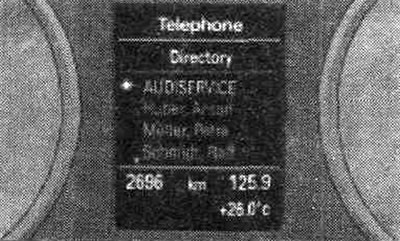
Image of the display of the information system. for the driver.
The multifunction steering wheel allows the driver to control the functions of the active radio source, telephone or navigation while actively navigating to a destination, without taking their hands off the steering wheel. Very convenient! The functions are displayed on the information system display. for the driver. In addition, the multifunction steering wheel can be used to switch the speech dialogue system on/off and change the sound volume. Control is carried out by pressing and rotating the keys "1" - "4". By successively pressing the MODE "2" button, switching occurs from the navigation function to the phone and then to the active audio source. The function is displayed on the information system display. for the driver. You can exit the active function's submenu again by pressing the MODE key "2." Rotating the left menu wheel "1" selects the active function's submenu. The speech dialogue system is activated by pressing the "3" speech key. Pressing and holding the speech key again terminates the dialogue. Rotating the right menu roller "4" up/down increases/decreases the sound volume.
Note: The navigation display can be turned off using the "Reset" button on the windshield wiper control handle. On the display of the information system. the on-board computer is also displayed to the driver.
MMI display
Navigation settings
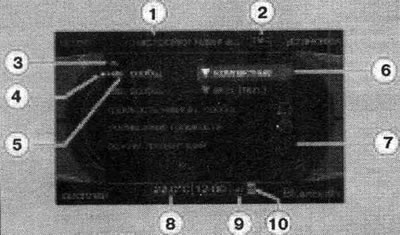
After pressing the function key, a menu appears on the MMI display.
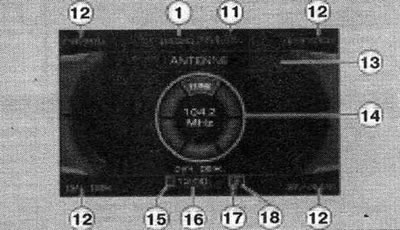
Radio submenu.
| Explication | Symbol/designation | Purpose |
| 1 | Title line | Selected mode (for example, radio). Setting indication: setting menu of the selected mode (for example, setting up navigation). On a car with a telephone, the name of the mobile operator and, if necessary, the roaming symbol are displayed. |
| 2 | TMS symbol | Receiving traffic situation messages from the TMS |
| 3 | Up/down arrows | Indicates continuation of menu items (scroll forward/backward) |
| 4 | Cursor | Shows the selected line in the menu |
| 5 | Selected text | The selected menu item is highlighted in white |
| 6 | Selection field | Options for selecting the selected menu item |
| 7 | Arrow | Indicates further selection options or possible settings |
| 3 | Temperature indication | Set temperature of a car with automatic air conditioning |
| 9 | Signal strength indicator bars | Mobile connection quality or PIN: Enter the PIN code (SIM card). PUK: Enter the PUK code. SIM: Install the SIM card |
| 10 | Envelope symbol | Unread short message (SMS). Envelope crossed out: unable to receive incoming SMS messages (sIM card memory is full) |
| 11 | TR symbol | Receiving traffic reports |
| 12 | Display corners | Indication of possible functions. The functions are controlled by the control keys; the upper right corner of the display corresponds to the upper right control key |
| 13 | Subtitle | Information about the selected option (for example, a tuned radio station) |
| 14 | Control wheel | Control is achieved by rotating and pressing the control button |
| 15 | "Mute" symbol | Indication of mute of active audio source |
| 16 | Time | Set time |
| 17 | "Bluetooth" symbol | Active "Bluetooth" connection |
| 18 | Telephone symbol | Missed calls |
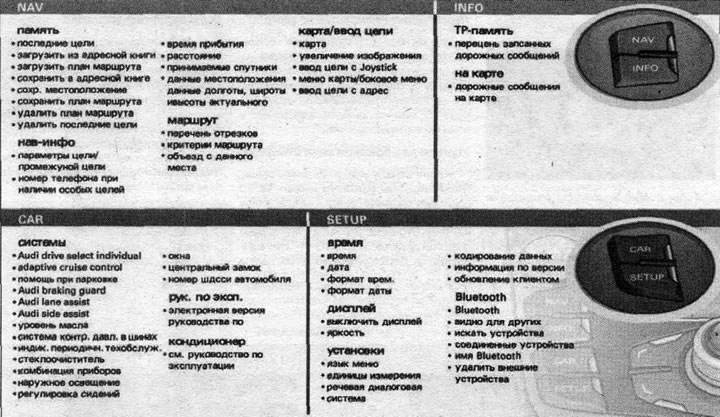
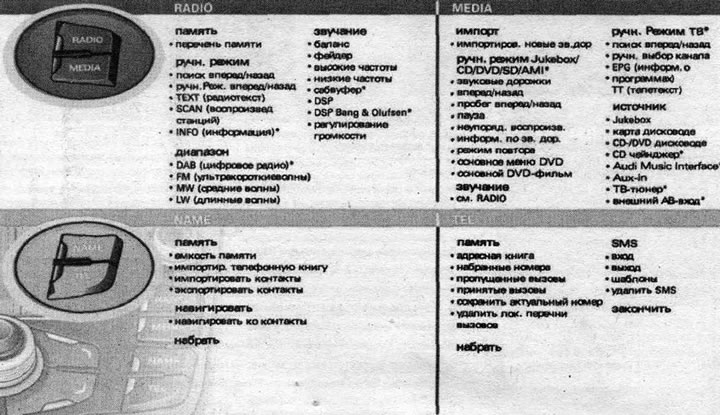
MMI menu overview