



Table of contents: Disk drives ↓ General information about using… ↓ SETUP ↓ MMI Menu Overview ↓ General information about using… ↓ MMI display ↓ General information about use ↓ General information about management ↓

The various MMI controls are conveniently located in the central area of the instrument panel.
- 1. Multifunctional steering wheel
- 2. Driver information system
- 3. MMI display
- 4. MMI drives
- 5. On/Off button
- 6. MMI terminal (remote control)
Disk drives

1. CD eject button; 2. Slot for CD/DVD discs.; 3. OPEN key; 4. Memory card reader drive; 5. SIM card reader
The MMI drives are located in the centre console and are started and controlled via the MMI. Opening the SIM card reader cover by pressing the OPEN "3" button provides access to both memory card readers and the SIM card reader. The following audio file properties are supported by the CD/DVD drive, disc changer, memory card reader and USB memory device.

Caution. For safety reasons, the card reader cover must always be closed while driving - risk of injury! The automatic disc changer does not support displaying playlists. The more files/folders/playlists on the storage medium, the longer it takes to load the audio files. Audi recommends using a storage medium that only contains audio files. To reduce loading times, it is advisable to create subsections (for example, by artist or album). For the highest possible access speed for audio files, we recommend using SD cards of performance class 4 or higher. For MP3 compression, we recommend a minimum bit rate of 160 kbps. With MP3 files with variable bit rate, the display of elapsed playback time may differ from the actual time. MMI drives do not support files with DRM protection. Due to the variety of CD/DVD matrices and different memory capacities, the functionality of individual data carriers may be limited. Under certain circumstances, playback of copy-protected audio CDs or video DVDs or CDs/DVDs that do not comply with the standard may not be possible or may only be partially possible. Compliant CDs can be identified by the logo "Compact Disc Digital Audio", located on the disc. Under certain circumstances, multisession CDs/DVDs may not play or may play with limitations. When creating multisession (multisession) cD/DVD discs Audi recommends that you always complete the burning process on the disc. For optimal display of the different character sets (for example, in the ID3 tag) code pages are used according to the system language (for example Windows 1251). However, it is not always possible to ensure unambiguous recognition and display of characters. Never perform backups on memory card reader drives, automatic disc changers, CD/DVD discs or portable playback devices.
General information about using memory
NAV
memory
- last targets
- download from address book
- download route plan
- save to address book
- save location
- save route plan
- delete route plan
- delete last targets
nav-info
- target/intermediate target parameters
- phone number if there are special circuits
- arrival time
- distance
- received satellites
- data of longitude, latitude and altitude of the current
route
- list of segments
- route criteria
- detour from this place
INFO
TR-memory
- list of alternate road connections
on the map
- road messages on the map

CAR
systems
- Audi drive select individual
- adaptive cruise control
- Audi parking system
- Audi braking guard
- Audi lane assist
- Audi side assist
- oil level
- tire pressure monitoring system
- periodic maintenance indicator.
- wiper
- instrument cluster
- outdoor lighting
- seat adjustment
- windows
- central locking
- chassis number of the car
head of Exp.
- electronic version of the manual
air conditioner
- see operating manual
SETUP
time
- time
- date
- time format
- date format
display
- turn off display
- brightness
installations
- menu language
- units of measurement
- speech dialogue
- system
- data encoding
- version information client update
Bluetooth
- Bluetooth
- visible to others
- search for devices
- connected devices
- bluetooth name
- remove external devices

MMI Menu Overview

RADIO
memory
- memory list
Manual mode
- search forward/backward
- manual forward/reverse mode
- TEXT (radio text)
- SCAN (play stations)
- INFO (information)*
range
- DAB (digital radio)*
- FM (ultra short waves)
- MW (medium waves)
- LW (long waves)
sound
- balance
- fader
- high frequencies
- low frequencies
- subwoofer
- DSP
- DSP Bang & Olufsen*
- volume control
MEDIA
import
- import new soundtracks
manual mode CD/SD/AMI
- sound tracks
- forward/backward
- forward/backward mileage
- pause
- disordered reproduction.
- info by road sound repeat mode
- sound
- see RADIO
manual TV mode*
- search forward/backward
- manual channel selection
- EPG (information about programs)
- TT (teletext)
- source
- Jakebox
- card drive
- CD/DVD drive
- CD changer*
- Audi music interface*
- Aux-in
- TV tuner
- external AV input

NAME
memory
- memory capacity
- import phone book
- import contacts
- export contacts
navigate
- navigate to contacts
- dial
TEL
memory
- address book
- dialed numbers
- missed conclusions
- accepted calls
- keep current number
- delete local lists
- call
- dial
SMS
- entrance
- exit
- templates
- delete sms
- finish
General information about using memory
MMI Menu Overview
I
Keys on the MMI terminal

On/Off button
Keyless entry car with comfortable service
To switch on the MMI, switch on the ignition. The menu for the main function selected when the vehicle was last switched off appears. The audio/video source playing when the vehicle was last switched off is switched on. To switch off the MMI, remove the key from the ignition. The settings are saved in memory.
Car with a comfort service key
To turn on the MMI, press the START ENGINE STOP button. To turn off the MMI, press the START ENGINE STOP button twice. The settings are saved in memory.
Manual mode
To switch on the MMI, briefly press the on/off button. To switch off the MMI, press the on/off button and hold it down until the MMI switches off. If the MMI is switched off manually, it will not switch on automatically when the ignition is switched on again. When the ignition is switched off, the MMI remains in the operating state for about 10 minutes. If no function key, control key or control button on the MMI terminal is pressed during this period, the MMI switches off automatically.
Note: When the engine is switched off and the battery is low, the MMI is switched off automatically. Briefly pressing the on/off button will mute the selected audio source (Mute function).
II
Keys on the MMI terminal
The MMI functions are implemented by pressing and rotating the keys on the MMI terminal.

1. Function keys
By pressing the function key, a certain mode is switched on. For example, the radio mode is switched on by pressing the function key RADIO. Using the function key SETUP, other settings are selected for the switched on mode.
2. Control button with joystick
By turning the control button left/right and pressing it, a specific menu item is selected on the MMI display. The joystick can be used to move the crosshair on the map or to navigate in the DVD menu.
3. Control keys
To activate a function displayed in one of the 4 corners of the display, press the control key that corresponds to that corner of the display. For example, the upper right corner of the display corresponds to the upper right control key.
4. "Return" key
Pressing the RETURN key cancels a selection that has not yet been confirmed or returns to the next higher level.
5. Arrow keys
Pressing the left or right key selects the previous/next radio "or TV" station. Pressing the right key switches to the next track on a CD or connected iPod. Pressing the left key during the first 10 seconds of a track switches to the previous track. If more than 10 seconds have passed, the beginning of the track switches. If you hold down the left or right key in CD playback mode, fast forward/rewind is activated.
MMI display

Navigation settings

Radio submenu
After pressing the function key, a menu appears on the MMI display.
Navigation settings
Radio submenu
| Explication | Symbol/designation | Purpose |
| 1 | Title line | - Selected mode (for example, radio); setting indication: setting menu of the selected mode (for example, navigation settings); on a car with a telephone, the name of the mobile operator and, if necessary, the roaming symbol are displayed |
| 2 | TMS symbol | Receiving traffic messages from TMS |
| 3 | Arrows pointing up/down | Indicates continuation of menu items (scroll forward/backward) |
| 4 | Cursor | Shows the selected line in the menu |
| 5 | Selected text | The selected menu item is highlighted in white |
| 6 | Selection field | Options for selecting the selected menu item |
| 7 | Arrow | Indicates further selections or possible settings |
| 8 | Temperature indication | Set temperature of a car with automatic air conditioning |
| 9 | Signal strength indicator bars | Mobile connection quality or PIN: enter PIN code (SIM card), PUK: enter PUK code, SIM: install SIM card |
| 10 | Envelope symbol | Unread short message (SMS). Envelope crossed out: inability to receive incoming SMS (sIM card memory is full) |
| 11 | Symbol TR | Receiving traffic situation messages |
| 12 | Display corners | Indication of possible functions. Functions are controlled by control keys; the upper right corner of the display corresponds to the upper right control key |
| 13 | Subtitle | Information about the selected option (for example, a tuned radio station) |
| 14 | Control wheel | Control is achieved by rotating and pressing the control button |
| 15 | "Mute" symbol | Indication of mute of active audio source |
| 16 | Time | Set time |
| 17 | The "Bluetooth" symbol | Active "Bluetooth" connection |
| 18 | Telephone symbol | Missed calls |

Number Input Editor: Enter Phone Number

Letter Input Editor: Address Book Contact Search
The editor is used to enter an address, navigation destination or telephone number. Some functions of the address book, telephone or navigation system require the entry of letters or numbers. For this purpose, the editor for entering numbers or the editor for entering letters appears on the MMI display. If necessary, you can switch from numbers to letters or from letters to numbers during entry by turning the control button to 0 -9 "11" or A "Z/-5" and then pressing it. The following table lists and explains all the symbols for entering letters and numbers.
| Explication | Symbol/designation | Purpose |
| 1 | Selection arrow | The selected item is highlighted in white and a larger image of it appears in the input ring |
| 2 | "left/right" | Move the cursor forward/backward in the input field |
| 3 | "up arrow" | Switch from uppercase to lowercase letters |
| 4 | oK | Confirm input |
| 5 | A-Z | Switching from numbers to letters |
| 6 | Cursor | Marking the current position being processed |
| 7 | Input field | Indication of current input data |
| 8 | Input ring | Enlarged image of the sign selected by the selection arrow |
| 9 | Symbol of actualization | Indication of data update |
| 10 | a | Display of a list with special characters of a certain language |
| 11 | 0-9 | Switching from letter input to number input |
| 12 | LIST. | select list option |
| 13 | Adding a space to an input field | |
| 14 | "left arrow" | Delete the character before the white highlighted cursor |
| 15 | List of options | List of options in alphabetical order |
General information about use

Key combination for restart
MMI functionality is restored by pressing a key combination. Simultaneously press and hold the SETUP function key "1", the control button "2" and the upper right control key "3". Release the keys. The MMI system is switched off and a system reboot begins.
General information about management

Controls on the multifunction steering wheel
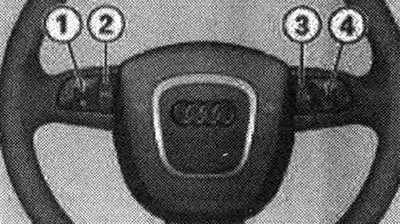
Image of the driver information system display
The multifunction steering wheel can be used to call up and control MMI functions such as navigation, telephone, radio, TV, data carriers or voice dialogue system. The driver can use the multifunction steering wheel to control the functions of the active radio source, telephone or navigation during active route guidance without taking his or her hands off the steering wheel. Very convenient! The functions are shown on the display of the driver information system. The multifunction steering wheel can also be used to switch the voice dialogue system on/off and to change the volume. Operation is performed by pressing and turning the buttons "1" "-4". Pressing the MODE button "2" successively switches from the navigation function to the telephone and then to the active audio source. The function is shown on the display of the driver information system. The submenu of the active function can be closed by pressing the MODE button "2" again. The submenu of the active function can be selected by turning the left menu wheel -1. The voice dialogue system is activated by pressing the speech button "3". Pressing and holding the speech key again stops the dialogue. Rotating the right menu roller "4" up/down increases/decreases the sound volume.
Note: The navigation display can be turned off using the "Reset" button on the windshield wiper control handle.
The original version of the article is posted on the website AUDIMANUAL.ru